Linux and Raspberry Pi
On a Raspberry Pi, or any Debian or Ubuntu computer, one command installs Gleanvolt. It runs as a service: it starts by itself when the computer starts, and comes back by itself if it ever stops unexpectedly. You don’t need to install Docker or anything else first.
What you need
Section titled “What you need”- A Raspberry Pi 3B or newer with Raspberry Pi OS (64-bit), or a computer with Debian 12 or newer or Ubuntu 22.04 or newer, 64-bit. OpenMediaVault 7 works too.
- A way to type commands on it: a keyboard and screen, or a connection from another computer
(on a Raspberry Pi, for example
ssh pi@raspberrypi.local).
Install
Section titled “Install”-
Open a terminal on the computer, and type this command, all on one line:
Terminal window curl -fsSL https://github.com/mpospisil/gleanvolt/releases/latest/download/install.sh | sudo shPress Enter, and type your password if asked.
-
Wait about a minute. When it is done, it shows where to open Gleanvolt:
Web UI http://gleanvolt.local:8090 or http://192.168.1.20:8090(plain HTTP; a new install opens on the setup wizard) -
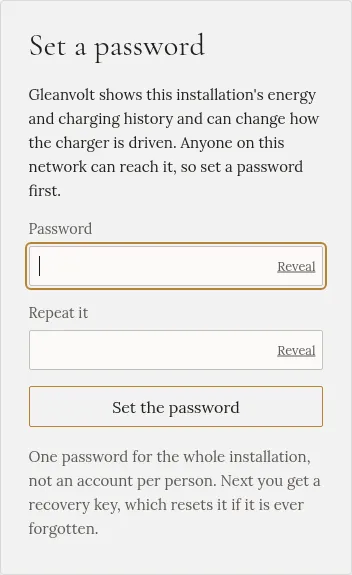
On your phone or computer, open that address in a web browser. You’ll see the password page:
-
Carry on with the setup wizard.
Starting and stopping
Section titled “Starting and stopping”Gleanvolt starts with the computer. To control it by hand:
systemctl status gleanvolt # is it running?sudo systemctl stop gleanvolt # stop itsudo systemctl start gleanvolt # start it againsudo systemctl restart gleanvolt # restart itIf you stop it with Stop service in Gleanvolt itself, it stays stopped until you start it with the command above, or restart the computer.
Updating, backing up and removing Gleanvolt are on Updating, backup and uninstalling.
The weather plugin
Section titled “The weather plugin”To record the weather from OpenWeatherMap through the OpenWeather plugin, which comes with each release, see Run the OpenWeather plugin.