Finding your devices
Gleanvolt needs to know where on your home network your inverter is. The setup wizard’s Search finds it for you. This page explains what it shows, and what to do when it doesn’t find it. Your charger is set up on its plugin’s own page instead: see Your charger.
The search
Section titled “The search”In the wizard’s Inverter step, press Search. Gleanvolt checks every address on your home network for a device it knows. A home network takes a minute or two.
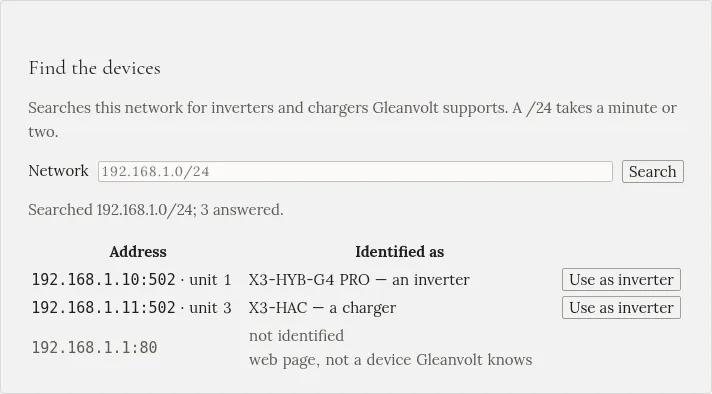
Each row is one device that answered:
- Address: where it is on your network, such as
192.168.1.10:502 · unit 1. The number after the colon is the port, and the unit is a device number on that port. You don’t need to remember either: choosing the device fills them in. - Identified as: the model the device reported, and whether it says it is an inverter or a charger.
- not identified: something answered, but it isn’t a device Gleanvolt knows, such as your router. Ignore it.
Press Use as inverter on your inverter’s row, then Save below the list. A charger is listed too, so you can tell the two apart, but the wizard doesn’t set it up.
When it finds nothing
Section titled “When it finds nothing”| What you see | What it means | What to do |
|---|---|---|
| Nothing, or only “not identified” rows | Modbus TCP (or go-e’s local API) is off | Turn it on: see Preparing your inverter and charger |
| Port open, no Modbus reply | Something else is connected to the device | Stop Home Assistant’s integration, evcc or other software that talks to it, then search again |
| It says it searched a 172.x network | Gleanvolt runs in a container that can’t see your home network | Type your home network’s range in Network, such as 192.168.1.0/24, or run the container on the host network |
| The device is on another network, such as a separate IoT Wi-Fi | The search only looks where you tell it | Type that network’s range in Network |
The range in Network is your home network’s addresses, written like 192.168.1.0/24. If your
devices’ addresses start with 192.168.1., that is the range to type.
Typing the address yourself
Section titled “Typing the address yourself”If you know the inverter’s address, from your router’s list of devices or from your installer, you don’t need the search. Fill in the form below it:
| Field | Inverter |
|---|---|
| Brand | SolaX or Huawei |
| Host | the inverter’s address, such as 192.168.1.10 |
| Port | 502 |
| Unit id | usually 1 |
The brand fills in its usual port and unit id. A Huawei inverter behind an EMMA also needs Connected through: EMMA, and the EMMA’s address as the host.
When you save
Section titled “When you save”Gleanvolt reads one value from the inverter, to check that the address answers and that the device is what you said:
- If the address answers like a charger, it warns you. Both use the same port, so the charger’s address would connect fine and then show a frozen battery and no sun.
- If the inverter doesn’t answer, it asks before it saves. Press Save anyway only if you are sure the address is right.
Give your devices fixed addresses
Section titled “Give your devices fixed addresses”Your router hands out addresses, and it can give a device a new one after a power cut. Gleanvolt would then lose it. In your router’s settings, look for DHCP reservation or static lease, and reserve the current address for the inverter, and for the charger too: its plugin needs to find it as well.