Grid tariff
Many homes pay two prices for electricity: a low tariff at certain hours, often at night, and a high tariff the rest of the time. In the Czech Republic this is the distributor’s HDO.
If you enter your low-tariff hours, two charging modes can wait for them before they use the grid: Fast (no battery) and Solar + grid, when you tick their Low tariff only option. Entering the hours on their own changes nothing about charging; the Overview just shows which tariff applies now.
Find your low-tariff hours
Section titled “Find your low-tariff hours”Your distributor publishes them for your HDO code. The code is on the HDO receiver next to your electricity meter, and in your contract. ČEZ Distribuce, EG.D and PREdistribuce each have a page called HDO or časy spínání where you type it in.
Enter them
Section titled “Enter them”-
Open Settings, and find Tariff. (Or the setup wizard’s Extras step.)
-
Under Provider, choose Table.
-
Under Weekdays, enter the low-tariff periods for Monday to Friday. Press Add period for each one. Then do the same under Weekend. Public holidays follow the weekday list.
-
Optionally, enter the prices per kWh. Without them, the tariff is shown without a price.
-
Check the Today and tomorrow bars: the shaded parts are low tariff. Then press Save.
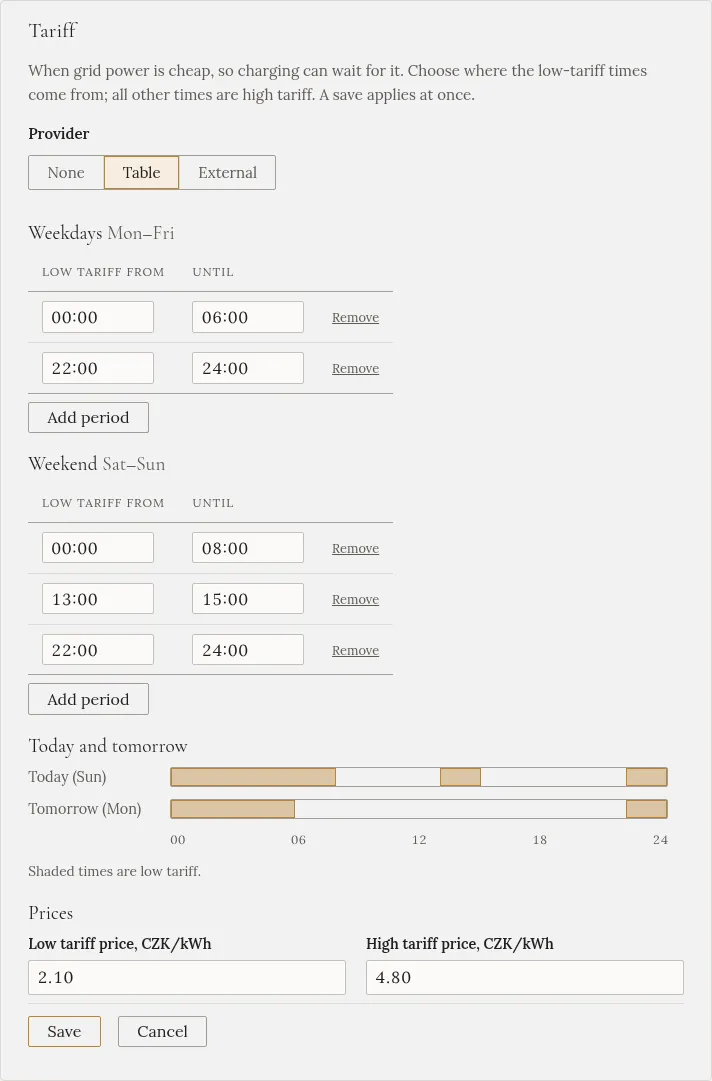
It applies straight away; there is no need to restart.
Rules for the periods
Section titled “Rules for the periods”- Enter only the low-tariff times. Every other time is high tariff.
- A period ends on the same day it starts. A night tariff from 22:00 to 06:00 is two rows: 22:00–24:00 and 00:00–06:00. Gleanvolt joins them across midnight, so at 23:00 it says “Low tariff, until 06:00”.
- Periods in one list must not overlap. Touching is fine, such as 06:00–08:00 and 08:00–10:00.
- Summer and winter time are handled for you.
- If your distributor changes your hours with the season, change the table when they do.
Or let another program supply it
Section titled “Or let another program supply it”If your tariff changes in ways a table cannot hold, such as day-ahead spot prices, a program outside Gleanvolt can supply it instead. This is the External provider. Somebody has to write or install that program; Gleanvolt does not come with one. Developers can find how to write one in the provider guide.
-
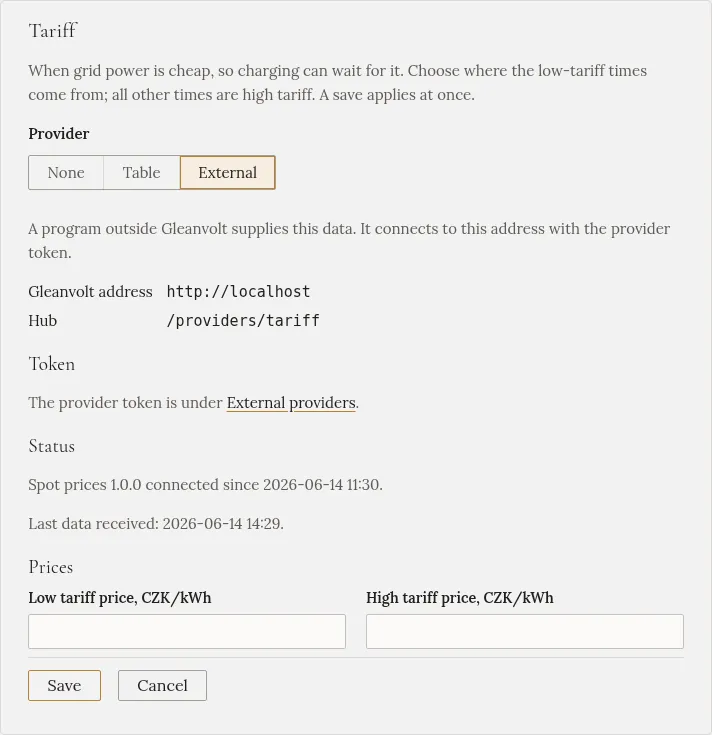
Open Settings, find Tariff, choose External under Provider, and press Save.
-
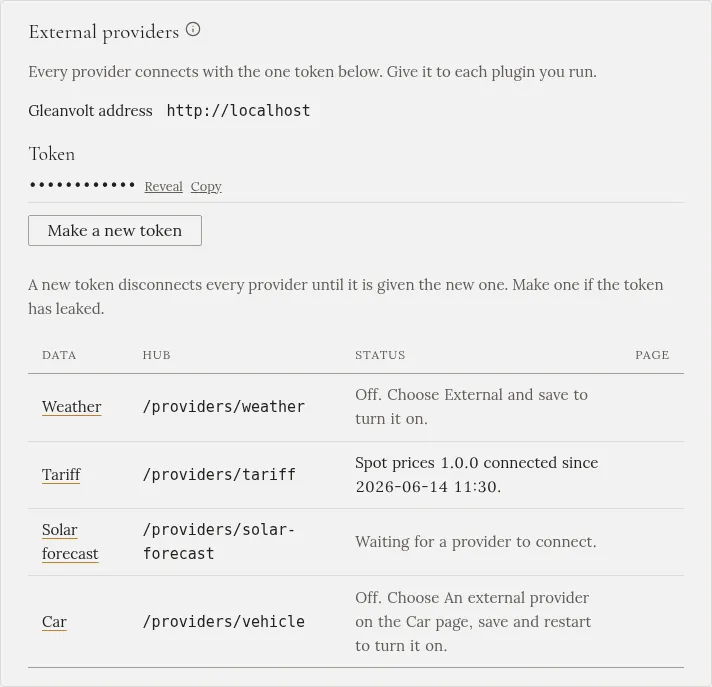
Further down the page, under External providers, press Make a token, then Copy. If a token is already there because another program uses it, copy that one: every program uses the same token. Reveal shows it, now or any time later.
-
Give the program the Gleanvolt address and the token.
-
When the program connects, Status names it, and Last data received says when its tariff arrived. The Overview’s tariff line names it too.
- If the program disconnects, or Gleanvolt restarts, Gleanvolt keeps using the tariff the program last sent, until its last time slot ends. After that there is no tariff restriction until the program is back.
- Starting order doesn’t matter. The program keeps trying until Gleanvolt answers, so it can be started before Gleanvolt, and it reconnects by itself after Gleanvolt restarts or is updated.
- If the token leaks, press Make a new token under External providers. Every program is disconnected until you give it the new token.
- Choosing Table or None disconnects the program, and it can’t connect again until you choose External.