Your car and its battery level
On the Car page you tell Gleanvolt two things:
- The car itself: its battery size, how many phases it charges on, and the currents it accepts. These make charging correct, so fill them in whatever car you have.
- Where its battery level comes from, optionally. With it, you can ask for a charge in percent, such as “80 % by 7:00”, and the Overview shows the car’s battery. Without it, everything works, and you ask for a charge in kWh instead.
The car
Section titled “The car”On the Car page (or the wizard’s Car step), fill in:
| Field | What to enter |
|---|---|
| Name, Make, Model | Whatever you like; they are shown, never acted on |
| Phases | How many phases the car charges on. Many smaller cars charge on 1 even from a 3-phase wallbox |
| Minimum current (A) | The lowest current the car accepts. Usually 6. Some cars need 8 |
| Maximum current (A) | The car’s on-board charger limit, often 16 or 32 |
| Usable pack (kWh) | The battery’s usable size, which the car’s percentage refers to. It is a little smaller than the size in the brochure: an ID.4 Pro has 77 usable of 82 |
| Charge efficiency | Leave it at 0.9 unless you know better |
Press Save.
The battery level
Section titled “The battery level”Under What reads this car, choose your manufacturer. The page then shows what it needs.
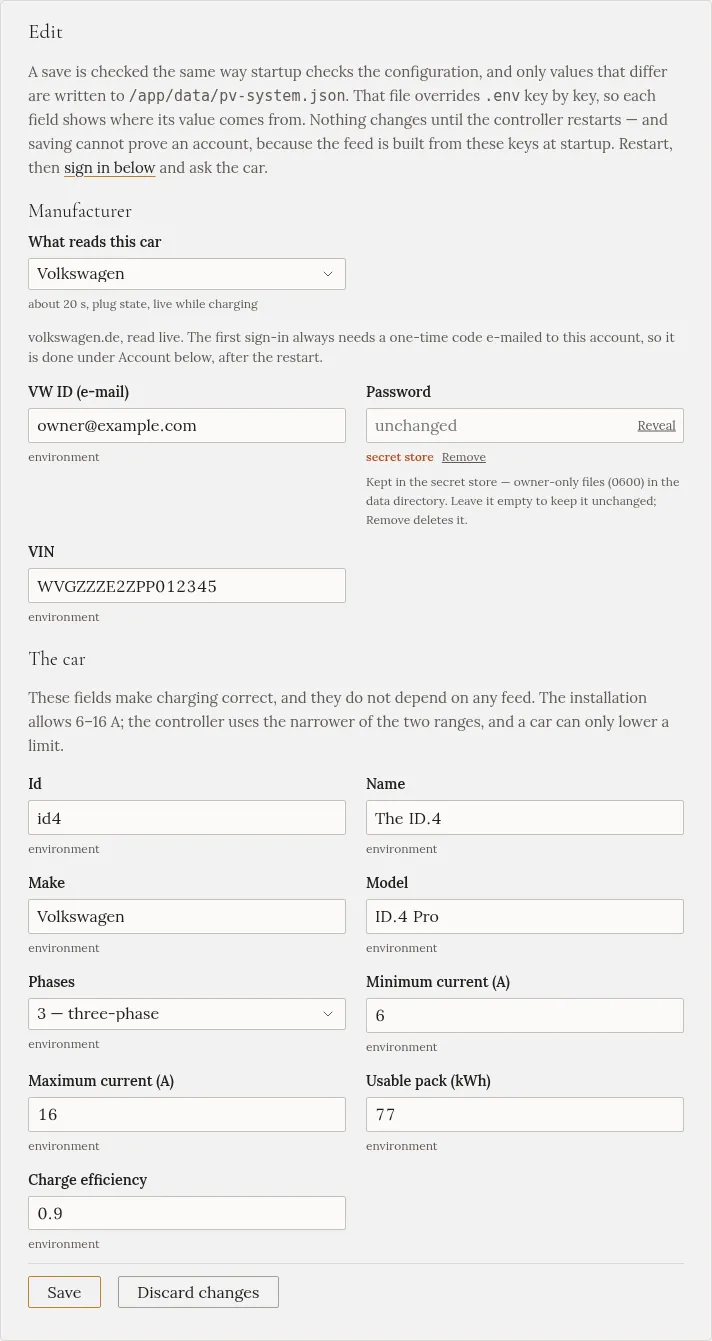
Volkswagen cars are read live from volkswagen.de, about every 20 seconds while charging.
-
Choose Volkswagen. Enter the e-mail and password you use for the Volkswagen app (your VW ID), and the car’s VIN.
-
Press Save, then Restart (the page offers it).
-
Back on the Car page, under Account, press Sign in.
-
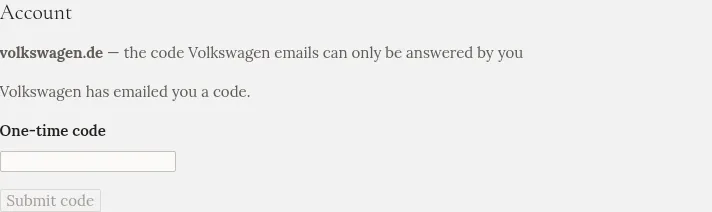
Volkswagen e-mails you a code. Type it in One-time code and press Submit code.
-
Press Ask the car to check that it answers.
Gleanvolt stays signed in after a restart. If Volkswagen ever signs it out, a band across the top of every page tells you, and you sign in again the same way. It doesn’t retry by itself, because repeated sign-ins can get an account locked.
Škoda cars are read through Škoda’s official API, every 5 to 15 minutes.
-
Choose Škoda, enter the car’s VIN, and press Save, then Restart.
-
In the MySkoda app, create an API key for this car.
-
Back on the Car page, paste the key under Account. Gleanvolt checks it, says until when it is valid, and starts reading the car.
A week before the key expires, Gleanvolt reminds you. Renewing it is pasting a new one.
These are read from the VW Group EU Data Act portal. Its readings are usually 2 to 4 hours behind the car, so they suit planning more than watching a charge.
First, in a web browser:
-
Open the EU Data Act portal and sign in with your brand’s account (myAudi, SEAT or Cupra ID, and so on). Accept the consent screen.
-
If your car isn’t in the portal’s list, add it there by its VIN.
-
Go to Data clusters → Vehicle overview → Get customised data. Choose All data and every 15 minutes. The first data can take from a few hours to a couple of days to arrive.
Then in Gleanvolt:
-
On the Car page, choose Audi · SEAT · Cupra · Bentley · VW commercial. Choose your brand, and enter the account’s e-mail and password. Enter the VIN only if the account has more than one car.
-
Press Save, then Restart.
-
Press Ask the car. When the car’s battery level appears, it works.
If the portal shows a new consent screen or asks for a code, Gleanvolt stops reading and tells you. Sign in to the portal in a browser, deal with it there, and restart Gleanvolt.
Any car can be read by a program outside Gleanvolt that reads it however it can: through its own app or cloud, over Bluetooth, or from a dongle in the car. This is An external provider. Somebody has to write or install that program; Gleanvolt does not come with one. Developers can find how to write one in the provider guide.
-
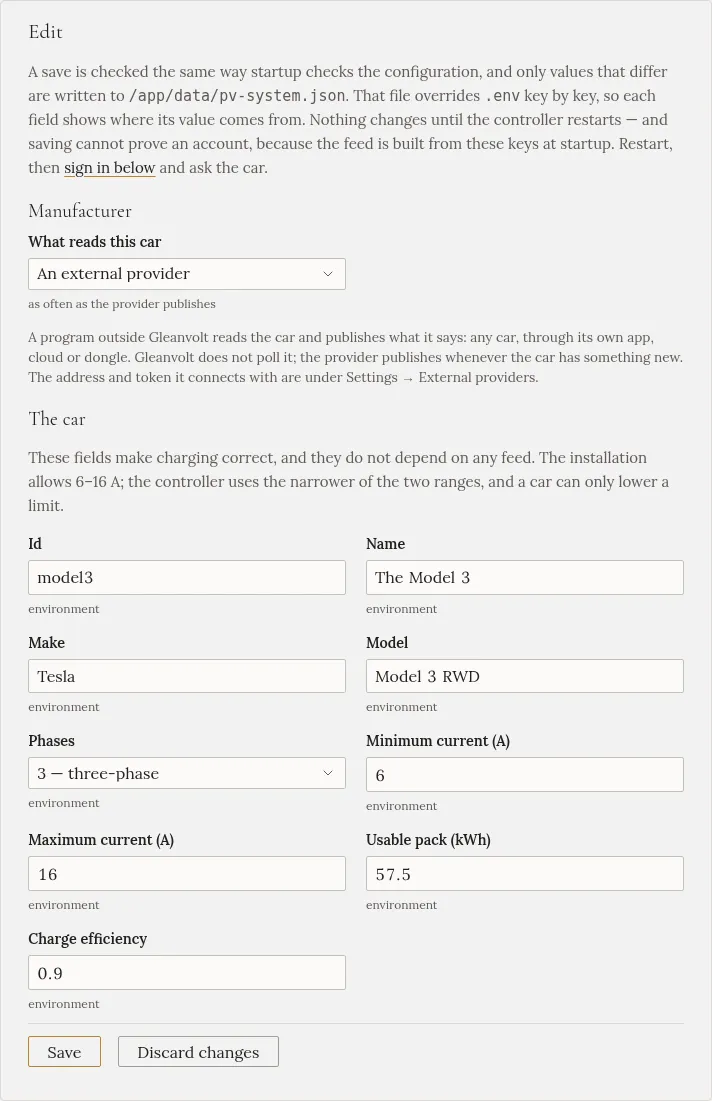
On the Car page, choose An external provider under What reads this car. Press Save, then Restart.
-
Open Settings. Under External providers, press Make a token, then Copy. If a token is already there because another program uses it, copy that one: every program uses the same token.
-
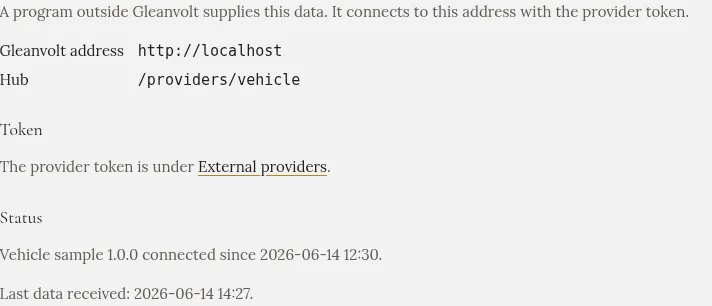
Give the program the Gleanvolt address and the token.
-
Back on the Car page, External provider says when the program connected and when its last reading arrived. The Overview’s car card names it too.
-
If the program has a page of its own, the Car page shows it under External provider, inside Gleanvolt. That is where you sign in to the car’s account and enter a code Volkswagen or another maker emails you. The page comes from the program, not from Gleanvolt, and only someone signed in to Gleanvolt can open it. If it stays blank, press Open in a new tab.
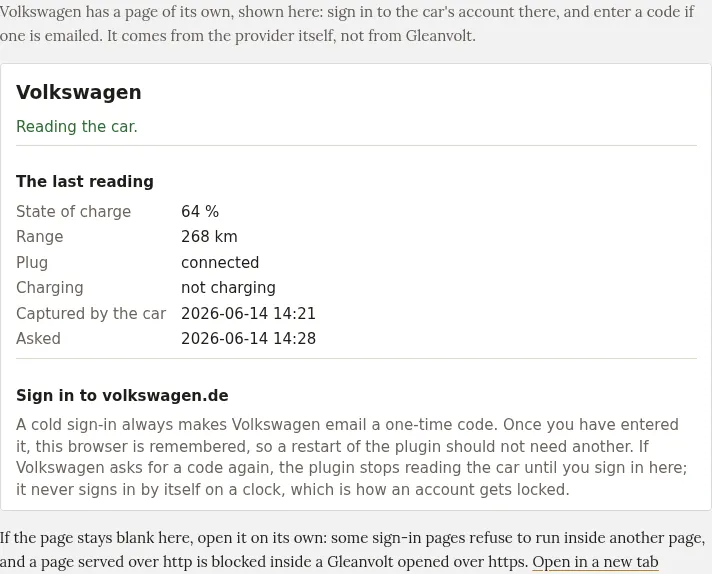
- The program sends readings when the car changes. Gleanvolt doesn’t ask it on a clock. Ask the car asks it once, and it has a minute to answer.
- If the program disconnects, the last reading stays and gets older, as with any feed. Gleanvolt doesn’t switch to another feed by itself.
- If the program’s login to the car’s account expires, the program can say so: a band across every page asks you to deal with it, and it goes away when the program reports it is fine again. A program with a page of its own is where you sign in again.
- Gleanvolt never sends the car anything through it: no start, no stop, no charge limit.
Choose Another manufacturer — charge only. Charging works exactly the same; you ask for a charge in kWh rather than in percent. If a program can read your car, see Through another program.
If Home Assistant can see your car’s battery level, it can pass it on to Gleanvolt. That is described in the repository, with the other advanced integrations.
Your password is kept safe, but not encrypted
Section titled “Your password is kept safe, but not encrypted”The password and keys you enter go into Gleanvolt’s private data folder, readable only by Gleanvolt. They are never shown again. Anyone with a copy of that folder could sign in to your car’s account, so keep backups of it private: see Updating, backup and uninstalling.