The Settings page
Everything the setup wizard asked for is also on Settings, with the same fields and the same checks. Settings has two tabs, Installation and Health. The car is on its own Car page.
Saving, and when to restart
Section titled “Saving, and when to restart”Each section has its own Save button. Gleanvolt checks the values before it saves them: if something would stop Gleanvolt from starting, nothing is saved, and the section says what is wrong.
Some sections apply at once. Others are read only when Gleanvolt starts:
| Applies at once | Needs a restart |
|---|---|
| Solar forecast, Weather, Tariff, External providers, Change password | Installation (the devices and the site), Car, Home Assistant, API access |
When a change needs a restart, the section says Saved, not applied and lists what changed, with a Restart button next to it. Restarting takes about half a minute. It pauses a charge in progress, and Gleanvolt comes back with charging off, so restart when the car isn’t charging.
Next to each field, a small note says where its value comes from. A field you changed here has a Revert button that puts the original back.
Installation
Section titled “Installation”From top to bottom:
-
Installation: your home and your devices. The name, the location and the time zone, the solar panels, the home battery, and the inverter’s and the charger’s brand and address. To search for the devices again, open the wizard at
/wizard: see Finding your devices.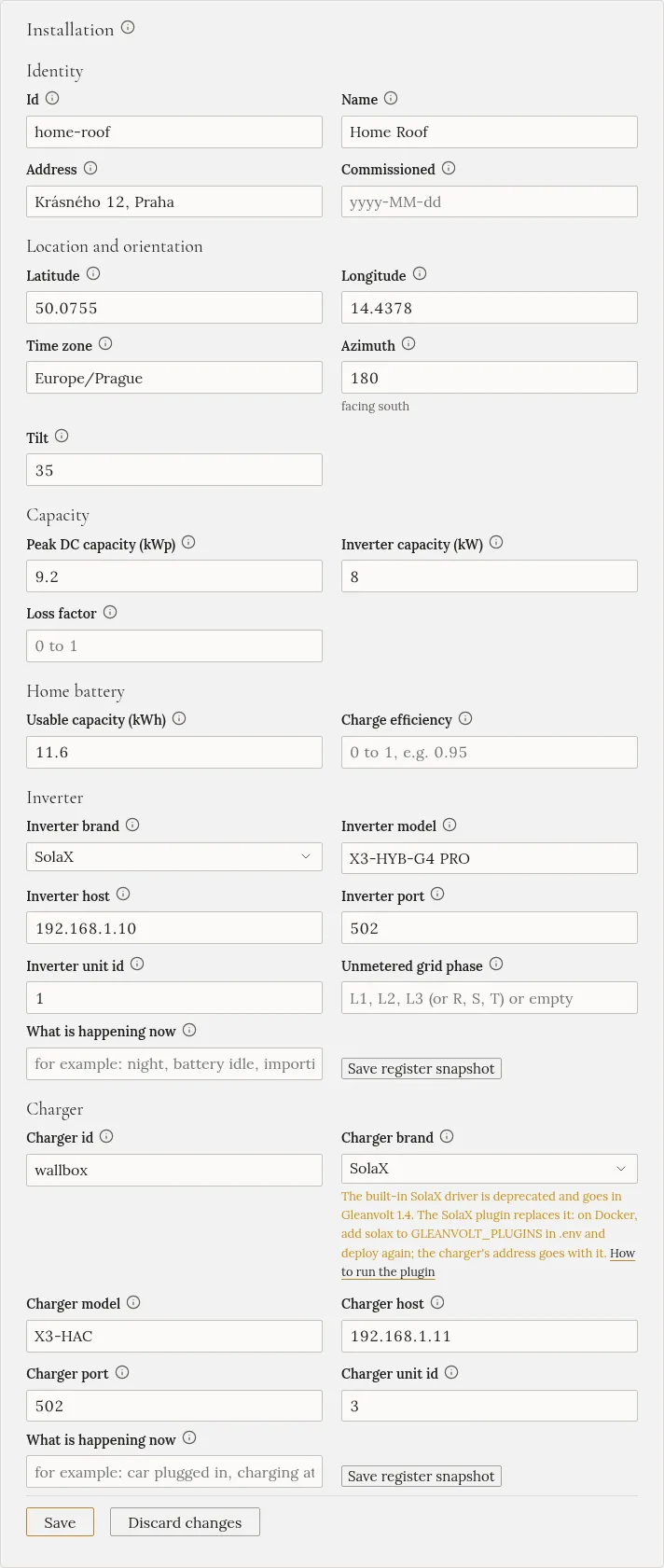
-
Solar forecast: the Solcast account. See Solar forecast.
-
Weather: where the weather comes from (none, or an external provider such as the OpenWeather plugin), and the provider’s own page. See Weather.
-
Tariff: your low-tariff hours. See Grid tariff.
-
External providers: shown when this Gleanvolt can take data from other programs. The one token every such program connects with, and whether each one is connected. The charger’s row shows the plugin Gleanvolt remembers, with Forget, and why a plugin was last turned away. See the External steps in Grid tariff and Solar forecast, and Through another program in Your car.
-
Change password: the password for the Gleanvolt page. You get a new recovery key, and every browser is signed out.
-
Home Assistant (MQTT) and API access: for connecting other software. Leave them off if you don’t use them. To connect Home Assistant, see Home Assistant; the rest is described in the repository.
Sections for settings you haven’t set up yet are listed at the top, under Not set up yet, each with a link to set it up.
Health
Section titled “Health”The Health tab shows whether Gleanvolt is running properly, and lets you restart or stop it.
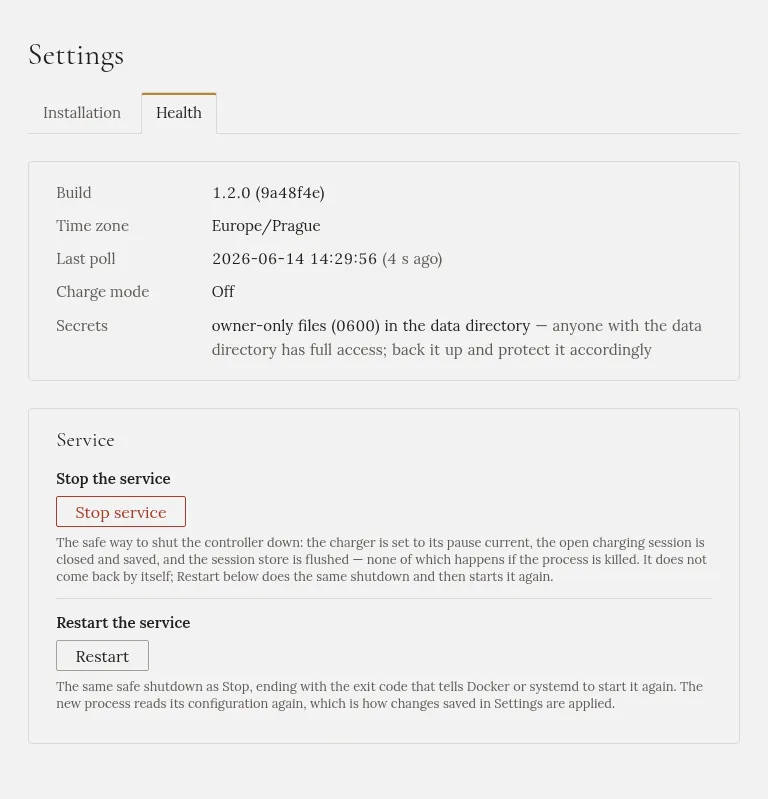
- Last poll: when Gleanvolt last read the inverter and the charger. It should be a few seconds ago.
- Restart: stops Gleanvolt safely and starts it again. This is how changes that need a restart are applied.
- Stop service: stops Gleanvolt safely. The charger is paused and the current charge is saved first. It does not come back by itself: you have to start it on the computer it runs on, or restart that computer.
Both buttons ask you to confirm. Anyone who can open the Gleanvolt page and knows the password can press them.
The Car page holds the car’s details and where its battery level comes from. See Your car and its battery level.