Windows
Install
Section titled “Install”-
Open Terminal (or Command Prompt): press the Windows key, type
terminaland press Enter. -
Type this command and press Enter:
Terminal window winget install MartinPospisil.GleanvoltAccept the agreements if asked.
-
Close the terminal and open a new one, so Windows finds the new command. Then start Gleanvolt:
Terminal window gleanvolt -
When Windows asks whether to allow Gleanvolt through the firewall, allow it on private networks. Without that, your phone can’t reach it.
-
In a browser on the same PC, open
http://localhost:8090. From your phone, usehttp://gleanvolt.local:8090. You’ll see the password page: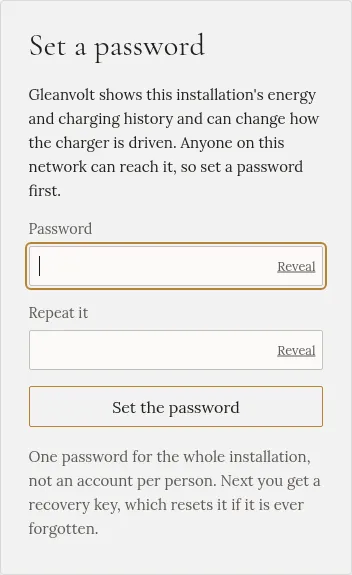
-
Carry on with the setup wizard.
Leave the terminal window open. To stop Gleanvolt, press Ctrl+C in it, or close it.
Without winget
Section titled “Without winget”Download gleanvolt-<version>-win-x64.zip from the
releases page, unzip it, and run
Gleanvolt.Worker.exe in the win-x64 folder.
Where your data is
Section titled “Where your data is”Gleanvolt keeps its settings and history in a data folder next to the program. With winget, that is in
%LOCALAPPDATA%\Microsoft\WinGet\Packages\, in the folder whose name starts with
MartinPospisil.Gleanvolt. Keep a copy of it before you update: see
Updating, backup and uninstalling.
The weather plugin
Section titled “The weather plugin”To record the weather from OpenWeatherMap through the OpenWeather plugin, which comes with each release, see Run the OpenWeather plugin.