Solar forecast (Solcast)
A solar forecast tells Gleanvolt how much sun to expect over the day. Two charging modes use it:
- Forecasted starts charging the car earlier, while making sure the home battery is still full by the evening.
- Targeted plans a charge to finish by a set time, using as much sun and as little grid as it can.
Without a forecast, Gleanvolt still charges from the sunshine there is right now, and every other mode works as usual. The forecast comes from Solcast, which is free for home use.
Get an account
Section titled “Get an account”-
Go to solcast.com and register for the free home user plan (also called hobbyist).
-
Add a rooftop site. Enter your home’s location and your panels’ details:
- Capacity: the panels’ total power in kW, such as 9.2. Your installer’s papers or the inverter’s app show it.
- Azimuth: which way the panels face. Follow Solcast’s own explanation of the number, as its convention may differ from a compass.
- Tilt: the panels’ angle from flat, in degrees.
The forecast is only as good as these numbers.
-
Open the site you created. Its resource id is shown there, a code like
a1b2-c3d4-e5f6-0789. -
Open your account settings and copy your API key.
Enter it in Gleanvolt
Section titled “Enter it in Gleanvolt”-
Open Settings, and find Solar forecast. (Or the setup wizard’s Forecast step.)
-
Paste the API key and the Rooftop site resource id.
-
Press Save and fetch. Gleanvolt fetches the forecast once, to check the account. There is no need to restart.
When it worked, the section says when the forecast was fetched:
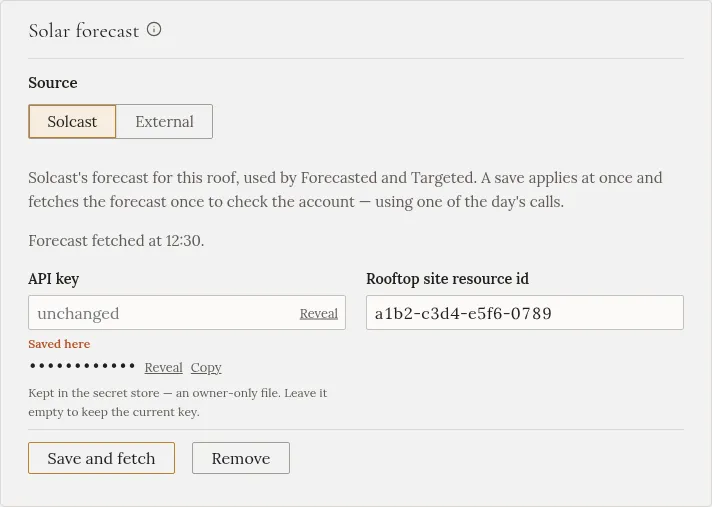
If Solcast refuses the key or doesn’t know the site, the section says so. Check what you pasted and save again.
About the daily limit
Section titled “About the daily limit”The free plan allows about ten forecasts a day. Gleanvolt fetches one every 12 hours, and one each time it starts. So:
- Restarting Gleanvolt many times in one day can use up the day’s forecasts. It works again the next day.
- If Solcast says the limit is reached, nothing is broken. Wait until tomorrow.
Or let another program supply it
Section titled “Or let another program supply it”A program outside Gleanvolt can supply the forecast instead of Solcast, for example one that reads another forecast service. This is the External source. Somebody has to write or install that program; Gleanvolt does not come with one. Developers can find how to write one in the provider guide.
-
Open Settings, find Solar forecast, choose External under Source, and press Save.
-
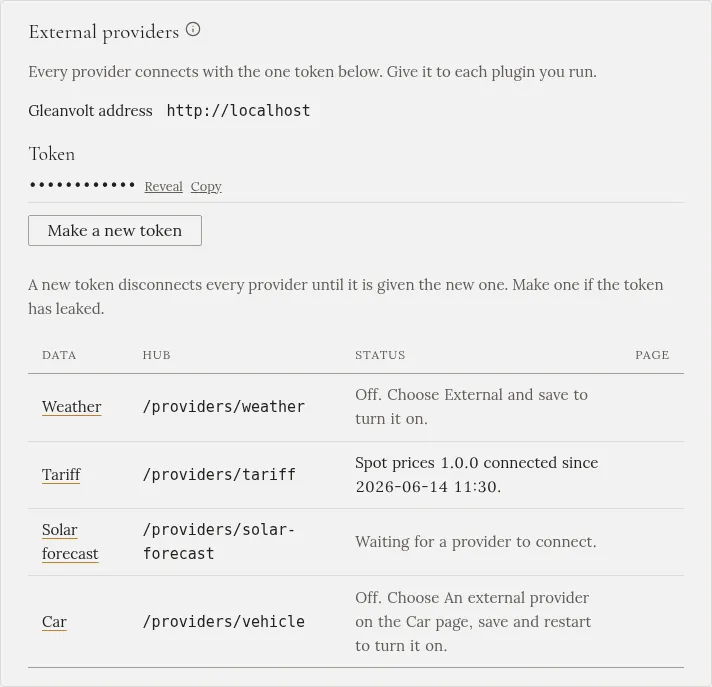
Further down the page, under External providers, press Make a token, then Copy. If a token is already there because another program uses it, copy that one: every program uses the same token. Reveal shows it, now or any time later.
-
Give the program the Gleanvolt address and the token.
-
When the program connects, Status names it, and Last data received says when its forecast arrived. The line under the Overview’s forecast table names it too.
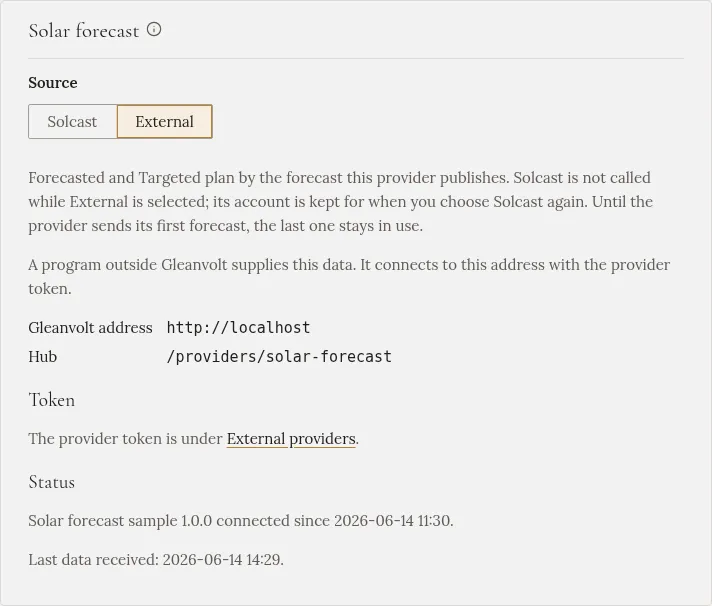
- Solcast is not called while External is chosen. Your Solcast account stays saved, so choosing Solcast again needs nothing else.
- If the program disconnects, Gleanvolt keeps planning on the forecast it last sent, and the Overview says it is from a disconnected program. It does not go back to Solcast by itself.
- After Gleanvolt restarts, there is no forecast until the program sends one, which it does as soon as it reconnects.
- Starting order doesn’t matter. The program keeps trying until Gleanvolt answers, and it reconnects by itself after Gleanvolt restarts or is updated.
- If the token leaks, press Make a new token under External providers. Every program is disconnected until you give it the new token.
- Choosing Solcast disconnects the program, and it can’t connect again until you choose External.